 printerqueue
Home › Windows print spooler
Windows Print Spooler: Restart and Fix Guide
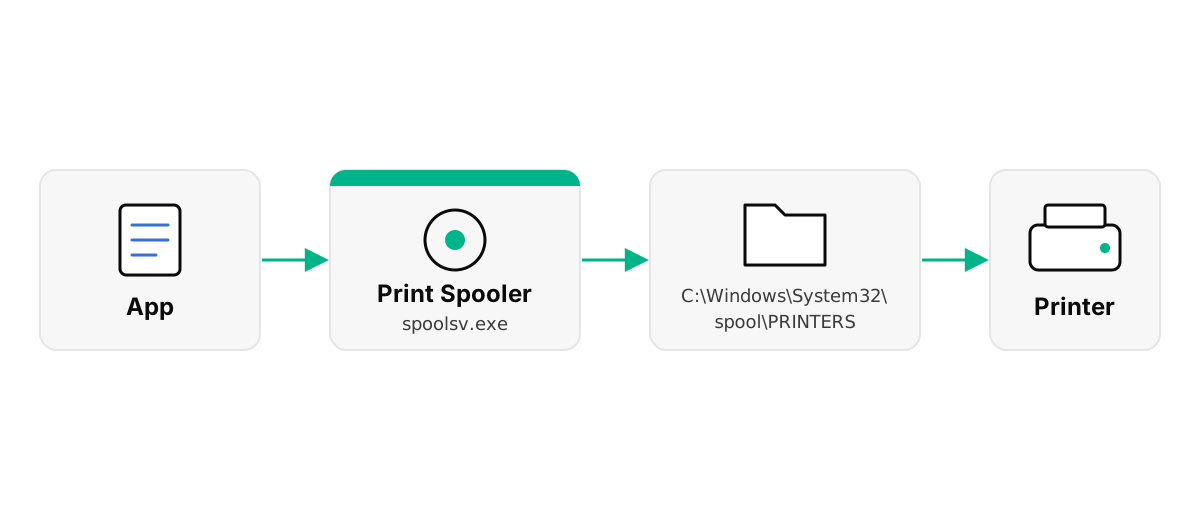
The Windows print spooler is the background service (spoolsv.exe) that takes your document, stores it as a temporary file in C:\Windows\System32\spool\PRINTERS and feeds it to the printer. When jobs freeze, restarting it usually fixes them. Press Windows key + R, type services.msc, find Print Spooler, right-click it and select Restart. From an admin Command Prompt, run net stop spooler and then net start spooler. If the service keeps stopping, a faulty driver is the usual cause.
On this page
Every job in your printer queue passes through the windows print spooler. That's why a restart fixes so many printing problems at once — and why a broken spooler stops every printer on the PC.
What does the Windows print spooler do?
When you press Print, the app doesn't talk to the printer directly. It hands the document to the windows print spooler, which works through four steps:
- It turns the document into a print job using the printer's driver.
- It saves the job as a file in the spool folder, so the app is free straight away.
- It adds the job to that printer's queue.
- It sends jobs to the printer one at a time, and deletes each file when it's done.
Microsoft's Microsoft's spooler troubleshooting guide notes that the service normally starts with Windows and runs until shutdown, and that it includes components supplied by printer makers as well as Windows' own files. That's why a single bad driver can bring the whole windows print spooler down.
Where does the Windows print spooler keep files?
Waiting jobs sit in C:\Windows\System32\spool\PRINTERS as pairs of files, one pair for each job the windows print spooler is holding. The folder is usually empty when nothing is printing. If it's full of old files and the queue is stuck, those files are what's holding things up.
It's safe to delete them — but only while the windows print spooler is stopped, and only the files inside, not the folder itself. Some people call this folder the "printer cache". The full steps are in the guide to clear print queue jobs.
How do you restart print spooler service?
To restart print spooler service from the Services window, the method in Microsoft's stuck print job steps:
- Press Windows key + R, type
services.mscand press Enter. - Scroll to Print Spooler.
- Right-click it and choose Restart.
- Check that its Status shows Running and its Startup type is Automatic.
If Startup type says Disabled, double-click the service, set it to Automatic, select Apply and then Start. When you restart print spooler service this way, waiting jobs usually carry on printing; ones that were stuck may need cancelling first.
How do you restart it from Command Prompt or PowerShell?
Typing is the quickest way to restart the windows print spooler once you know the commands. Microsoft's Microsoft's spooler troubleshooting guide lists both. In a Command Prompt opened with Run as administrator:
net stop spooler
net start spoolerRun as administrator.
Or in PowerShell opened as administrator:
Restart-Service -Name SpoolerTo empty the queue in the same go, add a del line between stop and start — that's the clear printer queue cmd method, with a builder that writes the commands for you.
Why does the print spooler service keep stopping?
If the print spooler service stops again minutes after you start it, something is crashing it. Microsoft's Microsoft's spooler troubleshooting guide and print spooler not running fixes point to the same causes:
- Outdated or conflicting drivers. Old, duplicate or damaged printer drivers are the most common cause. In Device Manager, expand Print queues or Printers and remove drivers you no longer use, then install the latest one for your printer. See updating printer drivers for the safe order.
- A damaged job file. A corrupt file in the spool folder can crash the service every time it starts. Stop the spooler and empty the folder.
- Antivirus blocking files. Security software can interfere with the spooler. Microsoft suggests excluding the spool folder.
- Group Policy. On work PCs, a policy may stop or disable the service on purpose.
- Low resources or system instability. Check Event Viewer for errors from the print system.

Don't disable the spooler permanently if you print. With it off, no printer on this PC works.
Once the cause is fixed, the print spooler service stays running, and you can restart it any time a job freezes without changing anything else.
Frequently Asked Questions
Is it safe to restart the print spooler?
Yes. Restarting it is a standard fix and changes no settings. Jobs that were waiting may need to be printed again.
What is printsrv?
It is not the name of a standard Windows service. People searching for it usually mean the print spooler service, whose service name is Spooler and whose program file is spoolsv.exe.
How do I clear the printer cache?
Windows has no separate printer cache to clear. What people mean is the spool folder: stop the spooler, delete the files in C:\Windows\System32\spool\PRINTERS, then start it again.
Should I disable the print spooler?
Only on a computer that never prints. Some organizations disable it on servers as a security measure, but with the spooler off, nothing on that PC can print.
Why can't I start the spooler?
A damaged driver or a blocked file is the usual reason. Remove old printer drivers in Device Manager, update the one you use, and check that antivirus software is not blocking the spool folder. To manage queues once it runs, see the built-in print queue manager tools.