 printerqueue
Home › Check current print jobs
Check Current Print Jobs in Queue Windows
To check current print jobs in queue Windows 11 or 10, open Start → Settings → Bluetooth & devices → Printers & scanners, select your printer and choose Open print queue. The window lists every waiting job with its document name, status and page count. An empty list means nothing is waiting. While a document is printing you can also double-click the printer icon in the taskbar's notification area, and you can list print queue jobs with the PowerShell command Get-PrintJob.

On this page
Each printer keeps its own printer queue, so the list you see always belongs to one printer. If a job seems missing, it was usually sent to a different printer. The four ways to check current print jobs in queue windows below all show the same list; pick the one that suits you.
How do you check current print jobs in queue Windows 11 and 10?
The Settings app is the route that works on every Windows 11 and 10 PC. These steps match Microsoft's print queue instructions:
- Select Start → Settings.
- Go to Bluetooth & devices → Printers & scanners. On Windows 10 it's Devices → Printers & scanners.
- Select the printer you want to check.
- Select Open print queue (Windows 10: Open queue).
The queue window lists the print jobs in queue for that printer, oldest at the top. To look at another printer without going back to Settings, use the Printers list at the top of the window. There are more routes, including a one-click shortcut, in the guide to open print queue windows.
When you check current print jobs in queue windows this way, pay attention to the first row. That's the job the printer is working on, and its status tells you whether the line is moving.
Can you check current print jobs in queue windows from Control Panel?
On many builds, yes. Press Windows key + R, type control printers and press Enter. If Devices and Printers opens, right-click your printer and choose See what's printing. You get the classic queue window, the best place to check current print jobs in queue windows in detail, with more columns at once: Document Name, Status, Owner, Pages, Size, Submitted and Port.
Newer Windows 11 builds may send that command to Settings instead. If that happens, use the Settings steps above — the list of jobs is the same.
How do you see print jobs in queue from the taskbar?
While a document is printing, Windows shows a small printer icon in the notification area at the right end of the taskbar. You may need to select the up arrow to see hidden icons. Double-click the icon, or right-click it and choose your printer, to open the list of print jobs in queue.
This is the fastest way to check current print jobs in queue windows right after you print. The catch is that the icon only appears while something is printing. Once the last job finishes, it disappears, so you can't use it to check an empty or stalled queue later.
If the icon never appears even though you just printed, the job may still be stuck inside the app, or it may have gone to a printer that isn't the default. Open Settings and check the print jobs in queue for each printer in turn.
How do you list print queue jobs with PowerShell?
PowerShell can list print queue jobs without opening any window, which helps when you manage several printers or want to copy the list. The Get-PrintJob command is part of Windows' PrintManagement module, and, according to Microsoft's Get-PrintJob reference, it doesn't need administrator rights.
- Select Start, type PowerShell and open Windows PowerShell.
- Find your printer's exact name in Printers & scanners, or run
Get-Printerto list every installed printer. - Run the command below.
Get-PrintJob -PrinterName "Name"Run in PowerShell; replace Name with your printer.
To list the print queue jobs of every printer on the PC at once, pipe the printer list into the same command:
Get-Printer | Get-PrintJobYou can't use wildcards in the printer name, so type it exactly as Windows shows it, including spaces. Put the name in quotes.
What does Get-PrintJob show for each job?
By default the command prints a short table with the job Id, the computer and printer names, the document name, when it was submitted and its status. Ask for the columns you care about to get a tidier list:
Get-PrintJob -PrinterName "Name" | Format-Table Id, DocumentName, JobStatus, TotalPages, SubmittedTime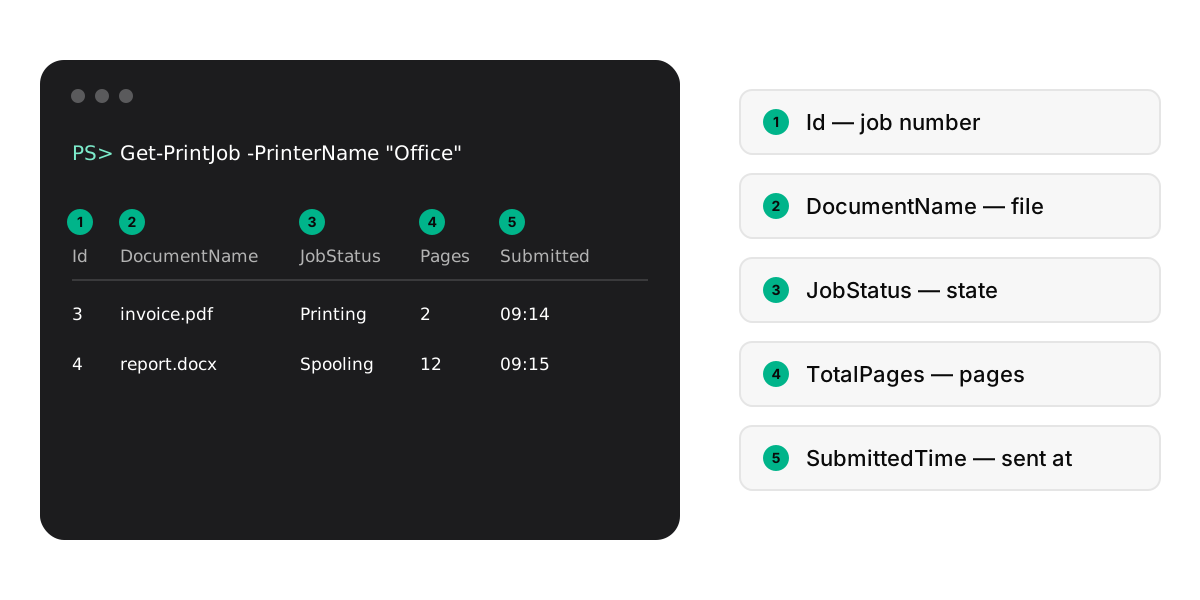
| Field | Meaning |
|---|---|
| Id | The job number. Other commands use it to pause, resume or remove one job. |
| DocumentName | The file or page title the app sent. |
| JobStatus | The current state, such as Printing, Spooling, Paused or Error. |
| TotalPages | How many pages the job has. |
| SubmittedTime | When the job joined the queue. |
The Id matters if you want to act on one of your print queue jobs: Microsoft's documentation links Get-PrintJob with Remove-PrintJob, Suspend-PrintJob, Resume-PrintJob and Restart-PrintJob, which all take a printer name and a job Id.
Why can't you see your print jobs in queue?
If you check current print jobs in queue windows and the list is empty or missing the job you expected, one of these is usually the reason:
- Wrong printer selected. The window shows one printer at a time. Switch with the Printers list at the top.
- The job is already in the printer. Many printers have memory. Once a job is transferred it leaves the list, even if paper hasn't come out yet.
- The app hasn't finished sending. Large PDFs and photos can take a while before they reach the queue at all.
- The list hasn't refreshed. Close the queue window and open it again.
If the jobs are there but simply not moving, you're looking at a different problem: print jobs pending usually means the job at the front is stuck, and every job behind it waits.
Why do finished jobs disappear from the list?
Windows removes a job from the print jobs in queue list as soon as it has been handed to the printer, so the queue only ever shows work that is still waiting or in progress. There's a printer setting, Keep printed documents, in the printer's Properties under the Advanced tab, that holds finished jobs in the list. Most people don't need it, and it makes the spool folder grow, so leave it off unless you want a printing history.
If you need to know whether something printed, the printer's own panel or web page often keeps a job log, and on a print server an admin can check its records. For everything else, the Settings window, the taskbar icon and PowerShell let you check current print jobs in queue windows in a few seconds.
Frequently Asked Questions
How do I see what's printing right now?
Open the print queue for your printer. The job at the top with the status Printing is the one being sent now; everything below it is waiting its turn.
Can I check print jobs on a network printer?
Yes, as long as the printer is installed on your PC. You see the jobs you sent. Jobs from other people on a shared or server printer show only if your account has rights to manage that printer.
Why is my print queue empty but the printer is busy?
The job has already been transferred to the printer's own memory, so Windows no longer lists it. Check the printer's screen or panel for its progress.
How do I check print jobs in progress?
Look at the Status column. Spooling means Windows is still preparing the file, and Printing means it is being sent to the printer.
Is there a shortcut to view current print jobs?
Yes. You can make a desktop shortcut that opens one printer's queue in a single click. The steps are in the guide to open print queue.