 printerqueue
Home › Clear queue with cmd
Clear Printer Queue CMD Command Builder
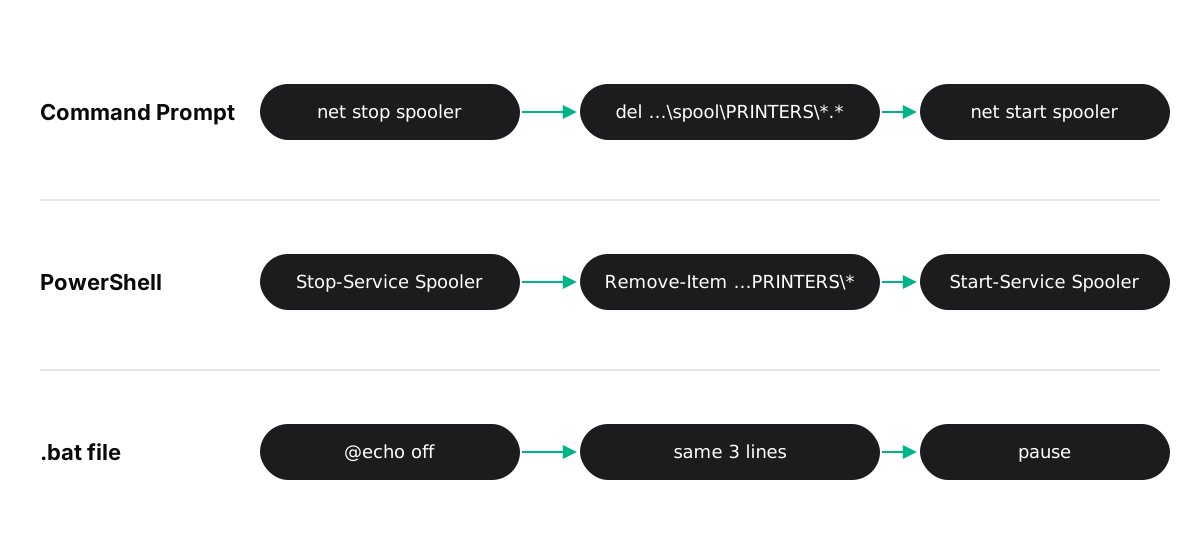
Pick how you want to clear printer queue cmd style — Command Prompt, PowerShell or a .bat file — and copy the commands below into an administrator window.
These commands delete every waiting job on this PC.
net stop spooler
del /Q /F /S "%systemroot%\System32\spool\PRINTERS\*.*"
net start spoolerRun as administrator.
Command Prompt
net stop spooler
del /Q /F /S "%systemroot%\System32\spool\PRINTERS\*.*"
net start spoolerPowerShell
Stop-Service -Name Spooler -Force
Remove-Item -Path "$env:SystemRoot\System32\spool\PRINTERS\*" -Force
Start-Service -Name Spooler.bat file
@echo off
net stop spooler
del /Q /F /S "%systemroot%\System32\spool\PRINTERS\*.*"
net start spooler
pauseRun as administrator.
What do clear printer queue cmd commands do, line by line?
Every waiting job in your printer queue is a file held by the windows print spooler. The clear printer queue cmd method stops that service, deletes the files and starts it again. Microsoft's Microsoft's stuck print job steps use the same three steps through the Services window; the commands just do it faster.
| Command | What it does |
|---|---|
net stop spooler | Stops the Print Spooler service so it lets go of every job file. |
del /Q /F /S "%systemroot%\System32\spool\PRINTERS\*.*" | Deletes every waiting job file. /Q skips the prompt, /F removes read-only files, /S includes subfolders. |
net start spooler | Starts the spooler again with an empty queue, ready for new jobs. |
The order matters. If you run the del line — the delete printer queue cmd step — while the spooler is running, Windows refuses to delete files that are in use, and the stuck job stays. Run all three clear printer queue cmd lines together and they work every time the window has administrator rights.
Why do clear printer queue cmd commands need an admin window?
Stopping and starting a Windows service, and deleting files in the System32 folder, both need administrator rights. In a normal window, net stop spooler answers with "Access is denied" and nothing changes. To open the right window:
- Select Start and type cmd.
- Right-click Command Prompt and choose Run as administrator.
- Select Yes when Windows asks for permission.
The window title starts with "Administrator:" when it worked. Paste the clear printer queue cmd lines there and press Enter.
How do you clear the printer queue with PowerShell?
To clear printer queue powershell style, open Windows PowerShell with Run as administrator and choose PowerShell in the builder. It gives you two options: the full reset, which stops the spooler, removes the files and starts it again, or a gentler command that removes the jobs of one printer only.
The one-printer version uses Get-PrintJob and pipes each job into Remove-PrintJob. According to Microsoft's Remove-PrintJob reference, that command doesn't need administrator rights and works on one printer at a time, so other printers keep their queues:
Get-PrintJob -PrinterName 'Name' | Remove-PrintJobReplace Name with the exact name in Printers & scanners.
This is the safest powershell clear printer queue option on a shared PC. If a job is locked and won't remove, fall back to the full reset, or just restart the spooler, as Microsoft's Microsoft's spooler troubleshooting guide shows:
Restart-Service -Name SpoolerHow do you turn the commands into a .bat file?
A .bat file keeps the clear printer queue cmd lines ready for the next time the queue sticks. Choose .bat file in the builder and select Download .bat, or make it yourself:
- Open Notepad.
- Copy the .bat commands from the builder and paste them in.
- Choose File → Save as, set Save as type to All files and name it
clear-printer-queue.bat. - Right-click the saved file and choose Run as administrator.
The file starts with @echo off so only the results show, and ends with pause so the window stays open until you press a key. That way you can read whether each line worked.
What if the commands fail with Access denied?
"Access is denied" or "System error 5" almost always means the window isn't running as administrator — the most common reason clear printer queue cmd commands fail. Close it and open Command Prompt again with Run as administrator.

Other messages and what they mean:
- "The Print Spooler service is not started" — the spooler was already stopped. Carry on with the other two lines.
- "The process cannot access the file" — something still holds a job file. Run
net stop spooleragain, wait a few seconds, then repeat thedelline. - "Could Not Find" — the folder was already empty. That's fine.
- The spooler won't start — a faulty driver is the usual cause. Microsoft's print spooler not running fixes walk through it.
If you'd rather click than type, the clear printer queue via cmd steps are the same as the Services window: Print Spooler → Stop, empty the folder, Print Spooler → Start.
Frequently Asked Questions
What is the delete printer queue cmd command?
It is three lines run in an administrator Command Prompt: net stop spooler, then del /Q /F /S "%systemroot%\System32\spool\PRINTERS\*.*", then net start spooler. Together they are the usual delete printer queue cmd fix.
Is the .bat file safe?
It is plain text with the same five lines shown on this page. Right-click it and choose Edit (or open it in Notepad) to read every line before you run it.
Will this delete my documents?
No. It deletes only the temporary print copies in the spool folder. Your original files stay where you saved them. To remove jobs one by one instead, see how to clear print queue from the queue window.
Can I schedule it?
You can run the .bat file from Task Scheduler with highest privileges, but it is better used only when the queue is actually stuck — it deletes jobs that are still waiting.
Does it work on Windows 10?
Yes. The service name, the spool folder and the commands are the same on Windows 11 and Windows 10.
The builder and the clear printer queue cmd lines cover emptying the queue. Need more than clearing it — pausing, reordering or watching several printers? Compare the built-in print queue manager options.