 printerqueue
Printer Queue Fixer
Your printer queue is the list of documents waiting to print. Pick your device and what's going wrong, and the fixer shows the exact steps to open, cancel or clear it.
This page can't see or change your printer — it shows the steps to run on your device.
What are you using?
What do you need?
Windows 11: See the queue
- Open Start → Settings → Bluetooth & devices → Printers & scanners.
- Select your printer.
- Select Open print queue. The window lists every waiting job with its name and status.
- No jobs listed means nothing is waiting on this PC.
Full guide: open print queue
Windows 11: Cancel one job
- Open Start → Settings → Bluetooth & devices → Printers & scanners.
- Select your printer, then Open print queue.
- Right-click the job you want to stop and choose Cancel.
- Confirm with Yes. The job disappears from the list once Windows has removed it.
Full guide: cancel print job
Windows 11: Clear everything
- Open Start → Settings → Bluetooth & devices → Printers & scanners.
- Select your printer, then Open print queue.
- Choose Cancel all from the window's menu (in the classic window: Printer → Cancel All Documents).
- Confirm with Yes and wait a few seconds for the list to empty.
Full guide: clear print queue
Windows 11: A job won't delete
- Select Start, type cmd, then choose Run as administrator.
- Paste the three commands below and press Enter. They stop the print spooler, delete the waiting print files and start the spooler again.
- Open the queue again and check that the list is empty.
- Still stuck? Turn the printer off for 60 seconds and restart the PC.
net stop spooler
del /Q /F /S "%systemroot%\System32\spool\PRINTERS\*.*"
net start spoolerFull guide: clear printer queue cmd
Windows 11: Printer shows Offline or Paused
- Open Start → Settings → Bluetooth & devices → Printers & scanners.
- Select your printer, then Open print queue.
- Open the Printer menu (or the ··· menu) and untick Pause Printing and Use Printer Offline if either is ticked.
- Check that the printer is on, awake and on the same Wi-Fi or cable as the PC.
- Turn the printer off for 60 seconds, then on again.
Full guide: printer queue status
Windows 10: See the queue
- Open Start → Settings → Devices → Printers & scanners.
- Select your printer.
- Select Open queue. The window lists every waiting job with its name and status.
- No jobs listed means nothing is waiting on this PC.
Full guide: open print queue
Windows 10: Cancel one job
- Open Start → Settings → Devices → Printers & scanners.
- Select your printer, then Open queue.
- Right-click the job you want to stop and choose Cancel.
- Confirm with Yes. The job disappears from the list once Windows has removed it.
Full guide: cancel print job
Windows 10: Clear everything
- Open Start → Settings → Devices → Printers & scanners.
- Select your printer, then Open queue.
- Choose Cancel all from the window's menu (in the classic window: Printer → Cancel All Documents).
- Confirm with Yes and wait a few seconds for the list to empty.
Full guide: clear print queue
Windows 10: A job won't delete
- Select Start, type cmd, then choose Run as administrator.
- Paste the three commands below and press Enter. They stop the print spooler, delete the waiting print files and start the spooler again.
- Open the queue again and check that the list is empty.
- Still stuck? Turn the printer off for 60 seconds and restart the PC.
net stop spooler
del /Q /F /S "%systemroot%\System32\spool\PRINTERS\*.*"
net start spoolerFull guide: clear printer queue cmd
Windows 10: Printer shows Offline or Paused
- Open Start → Settings → Devices → Printers & scanners.
- Select your printer, then Open queue.
- Open the Printer menu (or the ··· menu) and untick Pause Printing and Use Printer Offline if either is ticked.
- Check that the printer is on, awake and on the same Wi-Fi or cable as the PC.
- Turn the printer off for 60 seconds, then on again.
Full guide: printer queue status
Mac: See the queue
- Open Print Center. It opens by itself when you print; otherwise open Finder → Applications → Utilities → Print Center.
- Select your printer in the sidebar.
- Its waiting jobs appear in the list on the right.
- To see finished jobs, choose Window → Completed Jobs.
Full guide: mac printer queue
Mac: Cancel one job
- Open Print Center. It opens by itself when you print; otherwise open Finder → Applications → Utilities → Print Center.
- Select your printer in the sidebar.
- Select the job.
- Click the Delete Job button.
Full guide: cancel print job
Mac: Clear everything
- Open Print Center. It opens by itself when you print; otherwise open Finder → Applications → Utilities → Print Center.
- Select your printer in the sidebar.
- Select a job and click Delete Job.
- Repeat until the list is empty.
Full guide: clear print queue
Mac: A job won't delete
- Open Print Center. It opens by itself when you print; otherwise open Finder → Applications → Utilities → Print Center.
- Select your printer, then click Pause in the toolbar.
- Select the stuck job and click Delete Job.
- Click Resume.
- Still there? Turn the printer off for 60 seconds, restart the Mac and try again.
Full guide: mac printer queue
Mac: Printer shows Offline or Paused
- Open Print Center. It opens by itself when you print; otherwise open Finder → Applications → Utilities → Print Center.
- Select your printer in the sidebar.
- If it shows as paused, click Resume in the toolbar.
- A yellow badge on the Dock icon means the printer needs attention, such as paper or ink. Fix that, then click Resume.
- Check that the printer is on and on the same Wi-Fi as the Mac.
Full guide: printer queue status
What is a printer queue and how does it work?
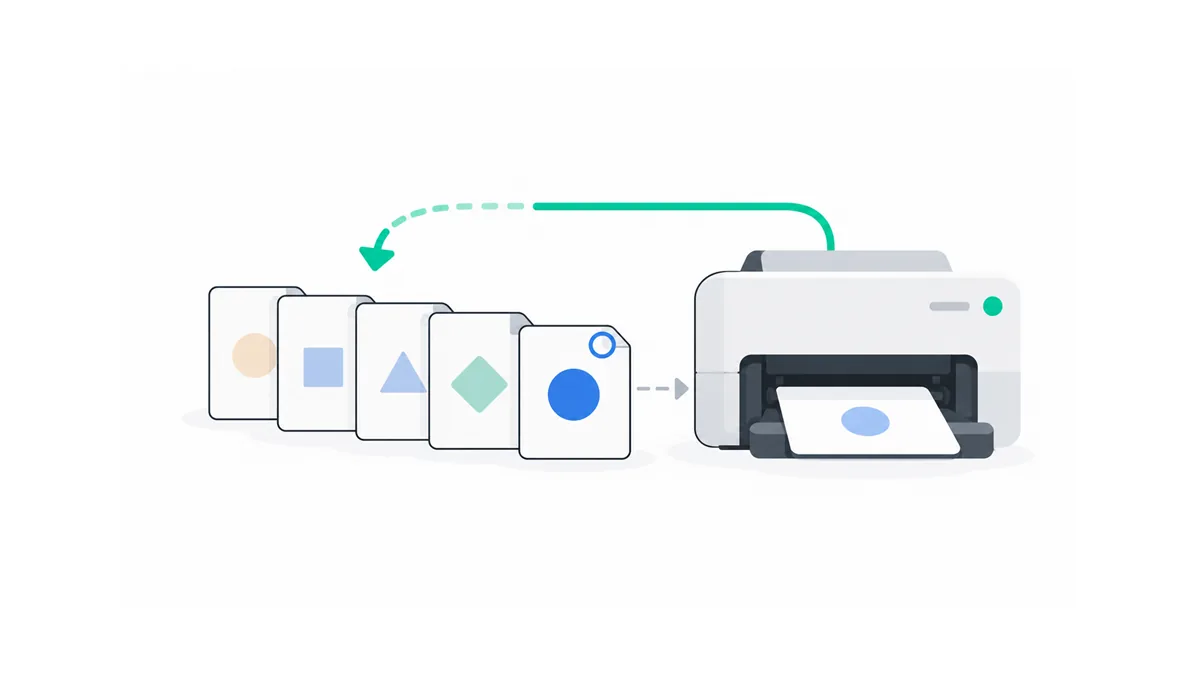
A printer queue is the waiting line your computer keeps for each printer. When you press Print, the app hands the document to Windows or macOS. The system turns it into a print job, adds it to the end of the line and sends jobs to the printer one at a time, oldest first.
That order is why a single bad job can stop everything. If the first document is stuck — the printer is offline, the file is damaged or the driver hangs — every job behind it waits. Nothing is lost; the jobs simply can't move. Find the job at the front, deal with it, and the rest usually print on their own.
Each printer has its own print queue. If you have a home inkjet and an office laser installed, a job sent to the laser never appears in the inkjet's list. That is the most common reason people think a job "vanished": they're looking at the wrong printer.
Where does a printer queue keep waiting jobs?
On Windows, the Print Spooler service stores each waiting job as a
temporary file in C:\Windows\System32\spool\PRINTERS. The
queue window you open in Settings is a view of those jobs. When a job
refuses to leave the list, it's usually because the spooler still has
its file open.
That's also why the deepest fix works: stop the spooler, delete the files in that folder, and start the spooler again. The printer queue comes back empty. Microsoft lists the same order in Microsoft's stuck print job steps. A Mac keeps its jobs inside the printing system instead, and you manage them through Print Center rather than a folder.
How do you open the print queue on Windows 11 and 10?
Windows keeps the print queue a few clicks deep in Settings, but the route is the same every time. These steps follow Microsoft's print queue instructions:
- Select Start → Settings.
- Go to Bluetooth & devices → Printers & scanners (Windows 10: Devices → Printers & scanners).
- Select the printer you sent the job to.
- Select Open print queue (Windows 10: Open queue).
The print queue window that opens shows only that printer's jobs. If you have several printers, use the Printers list at the top of the window to switch between them. For other routes, including a one-click desktop shortcut, see how to open print queue windows.

Can you open it from the taskbar instead?
Yes, but only while something is printing. Windows shows a small printer icon in the notification area at the right end of the taskbar during a print job. Double-click it, or right-click it and pick your printer, and the print queue window opens. Once the last job finishes the icon disappears, so the Settings route is the reliable one.
What does each column in the printer queue list mean?
The classic queue window shows the printer queue list as a table, one row per job, with the oldest job at the top. Windows 11's newer queue view shows fewer columns, but the same details appear when you select a job. To check current print jobs in queue windows with PowerShell as well, see that guide.
| Column | What it tells you |
|---|---|
| Document Name | The file or page title the app sent. Web pages often show the site title. |
| Status | What is happening now: Spooling, Printing, Paused, Error, Offline or Deleting. Blank means waiting its turn. |
| Owner | The user account that printed it. Useful on shared printers. |
| Pages | Pages in the job, or pages printed so far while it runs. |
| Size | How big the spooled file is. Very large sizes can make a job slow to start. |
| Submitted | When the job joined the queue. |
| Port | The connection used to reach the printer, such as USB or a network port. |
Read the printer queue list from the top down. The first row is the one the printer is working on. If its status says Error or Offline, that row is your problem, and the rows below it are only waiting. A long printer queue list with several copies of the same document usually means someone pressed Print again while nothing seemed to happen.
Before you cancel those extra copies, look at the Owner column on a shared printer. Cancelling another person's job needs administrator rights, and on an office printer it's polite to ask first. Your own rows in the printer queue list you can cancel freely.
Why is the printing queue empty when nothing prints?
An empty printing queue with no paper coming out usually means Windows has already handed the job over. Many printers have their own memory; once the whole job is transferred, it leaves your printing queue even if the printer hasn't started. The printer may be waiting for paper, a manual-feed tray or a warm-up.
Check the printer's own screen or lights first. If it shows an error, clear it there. If the printer looks idle and the printing queue is empty, the job may have gone to a different printer, so open the queue of each installed printer in turn. The printer queue status guide explains what each status word means and what to do about it.
One more case: some apps build the whole document before they hand it to Windows. For a large PDF or a photo book, the printing queue can stay empty for a minute while the app works. Give it time before you press Print again, or you'll end up with duplicates.
How do you clear a stuck printer queue?
Work through four levels, from quickest to most thorough. Most stuck jobs clear at level 1 or 2. This is the same order Microsoft gives in Microsoft's stuck print job steps.
- Cancel the jobs. In the printer queue window, right-click the stuck job and choose Cancel, or use Cancel all to remove everything.
- Restart the spooler. Press Windows key + R, type
services.msc, find Print Spooler, right-click it and choose Restart. The windows print spooler is the service that holds every job. - Empty the spool folder. Stop Print Spooler, delete everything
in
C:\Windows\System32\spool\PRINTERS, then start the spooler again. - Restart the devices. Turn the printer off for 60 seconds, restart the PC, then turn the printer back on.
Which printer queue fix should you try first?
Start with Cancel all in the printer queue window. It's safe, takes seconds and fixes most cases. If a job sits on "Deleting" for more than a minute, go straight to level 3 — that job's file is locked and cancelling again won't help. You can run level 3 in one go from an administrator Command Prompt:
net stop spooler
del /Q /F /S "%systemroot%\System32\spool\PRINTERS\*.*"
net start spoolerRun as administrator.
These three lines are what most people mean by clear printer queue cmd: they stop the spooler, delete every waiting job on this PC and start the spooler again. The step-by-step version of every level, including what to do when jobs come back, is in the guide to clear print queue jobs. After level 3 your printer queue is empty and new jobs print normally.
How do you see the printer queue on a Mac or phone?
On a Mac, the printer queue lives in Print Center. It opens by itself when you print. To open it yourself, go to Finder → Applications → Utilities → Print Center and select the printer in the sidebar. Select a job to hold, resume or delete it, and choose Window → Completed Jobs to see what already printed, as Apple's Print Center guide describes. Those few steps cover most mac printer queue problems.
The printer's icon in the Dock also tells you something. A number badge counts the jobs waiting, a pause symbol means the printer is paused, and a yellow badge means it needs attention, such as paper or ink. Fix the cause, then click Resume.
Phones don't keep a long-lived printer queue the way a computer does. On Android, an active print job usually shows in the notification shade, where you can cancel it. On iPhone and iPad, a running print job appears as Print Center in the app switcher. Menus vary by phone and system version, so if a job won't cancel there, cancel it on the printer itself.
Frequently Asked Questions
How do I open my printer queue fast?
Open Settings → Bluetooth & devices → Printers & scanners, pick the printer and select Open print queue. While a document is printing, a printer icon also appears in the taskbar notification area; double-click it to jump straight to the list.
Why won't my printer queue clear?
The Print Spooler service still has the job file open, so Windows refuses to delete it. Stop the spooler, delete the files in C:\Windows\System32\spool\PRINTERS, then start the spooler again. Your printer queue should be empty afterwards.
Is "print que" the same as printer queue?
Yes. "Print que", "printer cue", "printqueue" and queue printer are all searches for the same thing: the list of documents waiting for a printer.
Can I see another computer's print queue?
Only when the printer is shared from that computer or a print server and your account has rights to manage it. Otherwise you only see the jobs sent from your own PC.
Does clearing the queue delete my documents?
No. Clearing removes the temporary print copies only. The original files stay where you saved them, so you can print them again. To remove one job at a time, see how to cancel print job.