 printerqueue
Home › Printer troubleshooter
Printer Troubleshooter for Windows 11 and 10
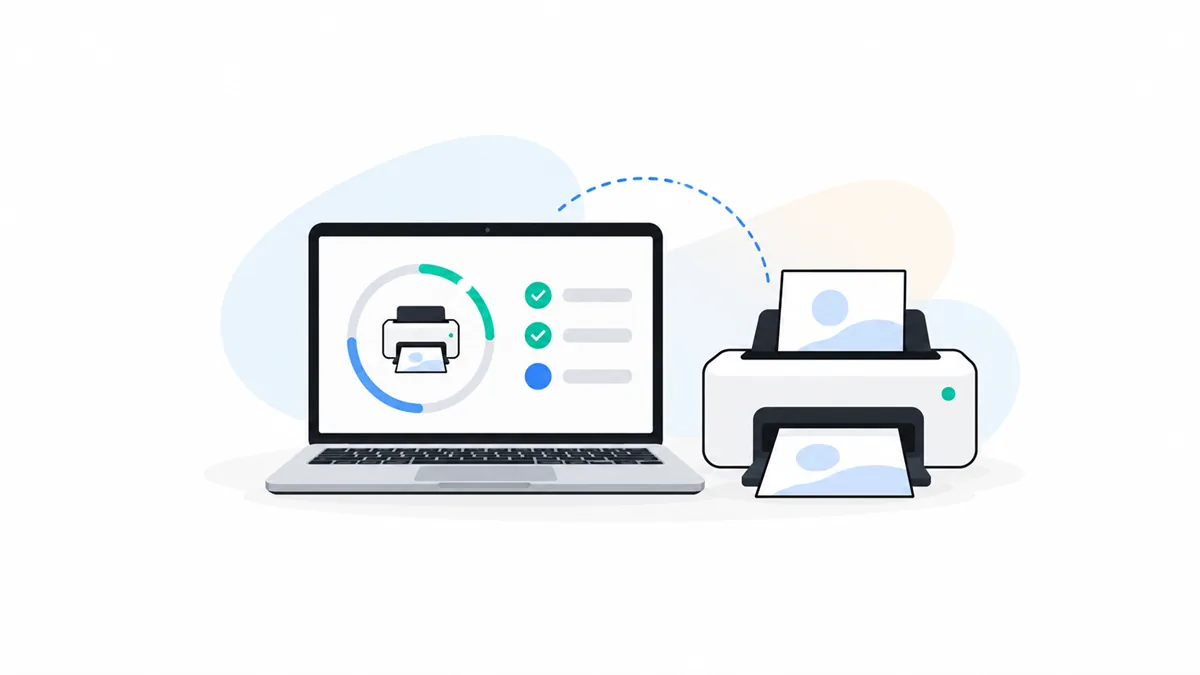
The Windows printer troubleshooter is a built-in check that looks for common printing faults and tries to fix them. On both Windows 11 and 10, Microsoft now runs it through the Get Help app: search for "printer troubleshooter" in Start or in Get Help, then follow the prompts. Older Windows 10 builds also list it under Settings → Update & Security → Troubleshoot → Additional troubleshooters → Printer. It can't fix paper jams, empty ink or a broken network. If it finds nothing, check the queue for a stuck job first, then restart the print spooler.
On this page
The troubleshooter is a good first step when a printer stops for no clear reason. It's not a cure-all, though, and a stuck printer queue is often the real problem. Here's how to run it and what to do after.
How do you run the printer troubleshooter on Windows 11?
Microsoft's Microsoft's printer connection fixes page points to the troubleshooter in Get Help. The steps:
- Select Start, type Get Help and open the app.
- Type printer troubleshooter in the search box and press Enter.
- Choose the printer troubleshooter from the results and follow the questions. It asks which printer is having trouble.
- Let it finish its checks and apply any fix it suggests.
- Print a test page to confirm the problem is gone.
Microsoft also offers a direct link, "Run the troubleshooter in Get Help", on the same page. It opens the same printer troubleshooter without the search step.
Where did the printer troubleshooter go in Settings?
Windows 11 used to list it under Settings → System → Troubleshoot → Other troubleshooters → Printer. Microsoft has moved the built-in troubleshooters into the Get Help app, so on current builds that Settings entry either opens Get Help or isn't there at all. If you can't find it in Settings, search for it in Get Help as above — it's the same printer troubleshooter.
How do you troubleshoot printer problems on Windows 10?
On Windows 10, the Get Help route above also works. Some builds still show it in Settings: Start → Settings → Update & Security → Troubleshoot → Additional troubleshooters → Printer → Run the troubleshooter.
If it finds nothing, troubleshoot printer issues by hand in this order:
- Check that the printer is on, has paper and shows no error on its own screen or lights.
- Open the print queue and look for a job with an error or "Deleting" status at the top.
- Restart the Print Spooler service (
services.msc→ Print Spooler → Restart). - Turn the printer off for 60 seconds and restart the PC.
- Check the driver in Windows Update's optional updates or on the printer maker's site.
These are the same checks you'd use to troubleshoot printer faults on Windows 11.
What can it fix — and what can't it?
Microsoft only says the troubleshooter runs diagnostics and tries to fix most printer problems; it doesn't publish a full list of checks. In practice it helps when you troubleshoot printer software problems:
- A Print Spooler service that has stopped.
- A printer Windows can't reach, or one set to the wrong default.
- Some driver errors, which may lead it to suggest a reinstall.
It can't fix anything physical: paper jams, empty ink or toner, a cover left open or a printer that isn't powered on. It also can't repair your Wi-Fi or router. And if a driver is outdated or damaged, updating printer drivers yourself is often the real fix.
What should you do when it finds nothing?
"Troubleshooting couldn't identify the problem" is a common result. It doesn't mean nothing is wrong — just that the fault is outside what the tool checks. Try these three things next:
- The queue. Open the print queue and remove any stuck job. The full escalation is in the guide to clear print queue jobs.
- The spooler. Restart the windows print spooler service so it lets go of locked files.
- The connection. Check what the queue says about the printer. The printer queue status guide explains what Offline, Error and Paused mean.
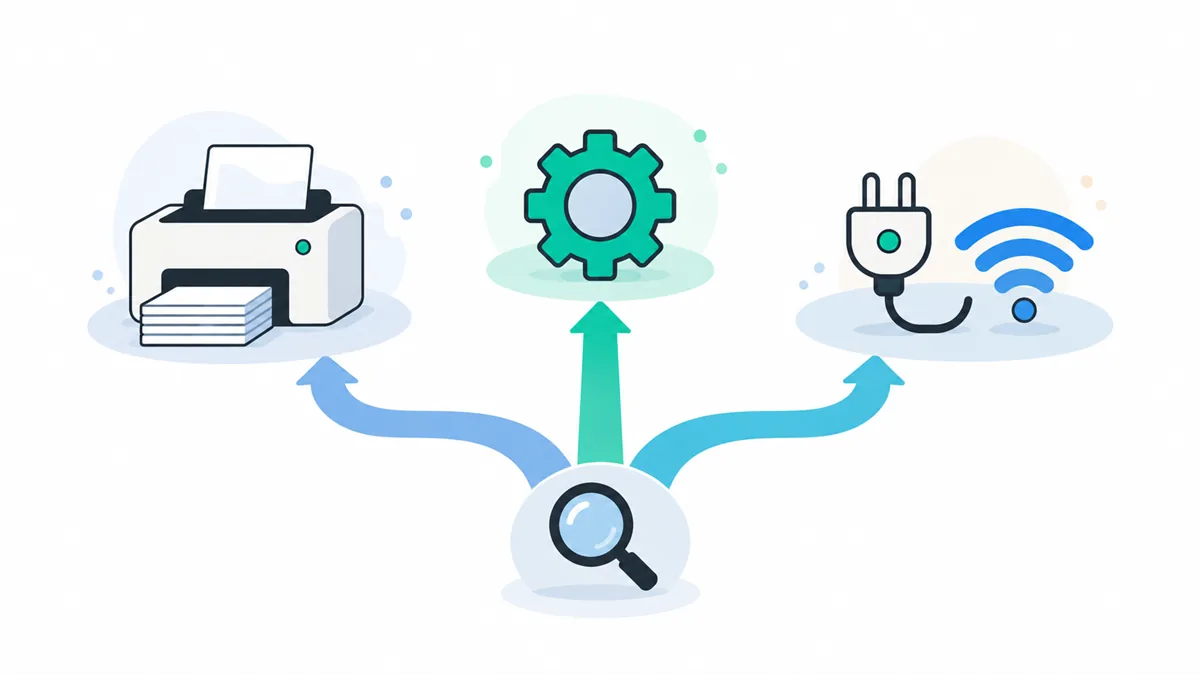
Troubleshooter found nothing? Most of the time the cause is a stuck job at the front of the queue. Clear it first.
Is a stuck print queue the real problem?
Usually, yes. The signs are easy to spot: you press Print, nothing happens, and you press Print again — and now the queue has several copies of the same document, none of them moving. The first job is stuck and everything behind it is waiting.
The printer troubleshooter may restart the spooler, but it doesn't always remove a damaged job. Cancel the first job by hand, or stop the spooler and empty the spool folder, and the rest of the line usually starts printing straight away.
Frequently Asked Questions
Is there an HP printer troubleshooter download?
HP offers its own diagnostic tools on its official support site. This site is independent and doesn't host downloads. Windows' own printer troubleshooter works for HP printers too.
Why does the troubleshooter say it couldn't identify the problem?
The fault is outside what it checks — often a stuck job, a paper or ink problem at the printer, or a network issue. Work through the manual checks on this page.
Does it work for network printers?
It checks basic things such as whether Windows can reach the printer. It cannot fix Wi-Fi or router problems, so make sure the printer and PC are on the same network.
Can it clear the print queue?
It may restart the print spooler, which can release stuck jobs, but it does not always empty the queue. To remove every job yourself, follow the steps to clear print queue.
Do I need admin rights?
Running it does not, but some fixes, such as restarting a service or changing a driver, ask for administrator permission.