 printerqueue
Home › Print jobs pending
Print Jobs Pending in the Queue: Causes and Fixes
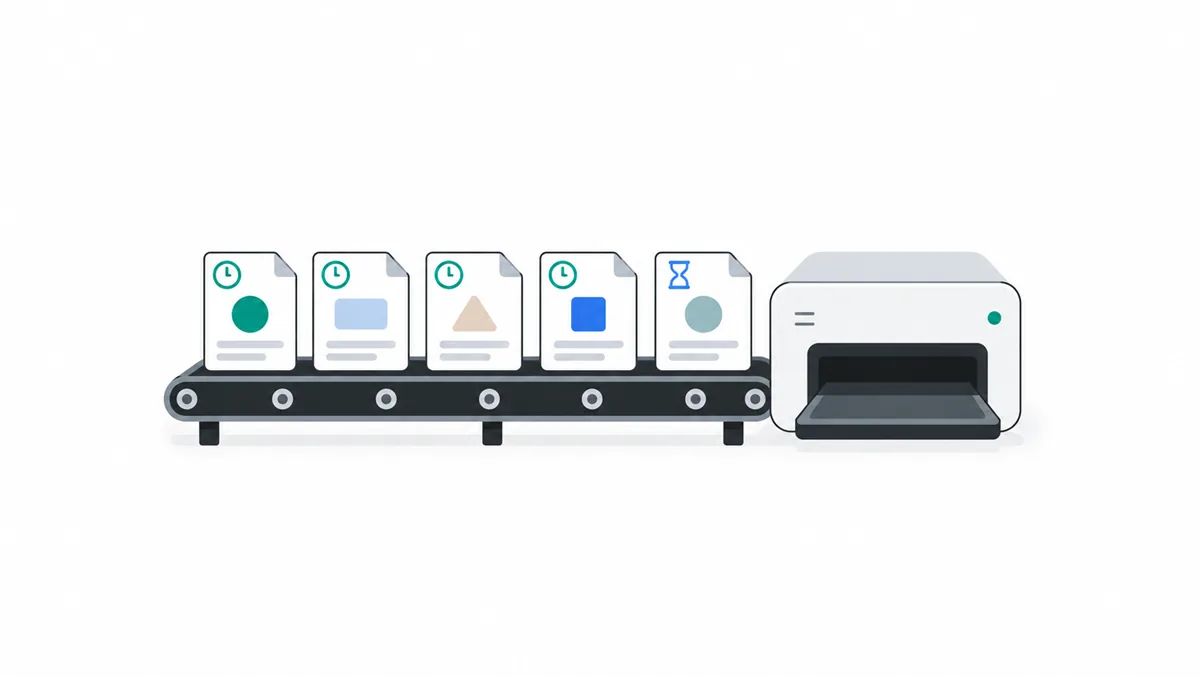
When print jobs pending pile up, the job at the top of the queue is usually blocking the rest. Open the queue (Settings → Bluetooth & devices → Printers & scanners → Open print queue) and look at that first job's status. "Error" means a printer fault, "Paused" means printing was paused, and "Offline" means the PC can't reach the printer. Cancel or restart the first job, check that Pause Printing is off, and if nothing moves, restart the Print Spooler service. The waiting jobs then print in order.
On this page
Your printer queue sends jobs one at a time, oldest first. Nothing behind the first job can move until it does, so that one job is almost always where fixing print jobs pending starts.
Why are print jobs pending in the queue?
Open the queue the way Microsoft's print queue instructions describes and read the Status column of the first row. These are the usual reasons print jobs pending won't move:
| Cause | What's happening | Fix |
|---|---|---|
| First job shows Error | A paper, ink or driver fault stopped it, and everything behind it waits. | Fix |
| Printer is Offline | Windows can't reach the printer. | Fix |
| Printing is paused | Pause Printing is ticked for the printer. | Fix |
| Spooler has stalled | The service holding the jobs stopped responding. | Fix |
| Wrong printer copy | Jobs went to a duplicate entry that no longer connects. | Fix |
If the first job has no status at all and several printer jobs pending sit behind it, the spooler may have stalled. A restart of the spooler, covered below, sorts that out.
Are print jobs pending because the printer is offline?
Often, yes. When Windows can't reach the printer, every job waits, and the printer's line in Printers & scanners shows Offline. Turn the printer on or wake it, check it's on the same Wi-Fi or cable as the PC, and open the queue's Printer menu to make sure Use Printer Offline isn't ticked.
Once the printer is back, print jobs pending usually start on their own within a minute. The printer queue status guide explains Offline and the other status words in more detail.
How do you fix pending printer jobs on Windows 11?
Work through these steps in order, and check whether the print jobs pending have started after each one. They clear pending printer jobs on Windows 10 as well; only the Settings path differs (Devices → Printers & scanners).
- Open the queue. Settings → Bluetooth & devices → Printers & scanners → your printer → Open print queue. Check you've picked the right printer — a duplicate such as "(Copy 1)" may be the one holding the jobs.
- Unpause. Open the Printer menu and untick Pause Printing if it's ticked.
- Deal with the first job. Right-click it and choose Restart, or Cancel if it keeps failing.
- Restart the spooler. Press Windows key + R, type
services.msc, right-click Print Spooler and choose Restart. The windows print spooler holds every waiting job. - Clear and restart. If nothing moves, empty the queue and turn the printer off for 60 seconds, as in Microsoft's stuck print job steps.
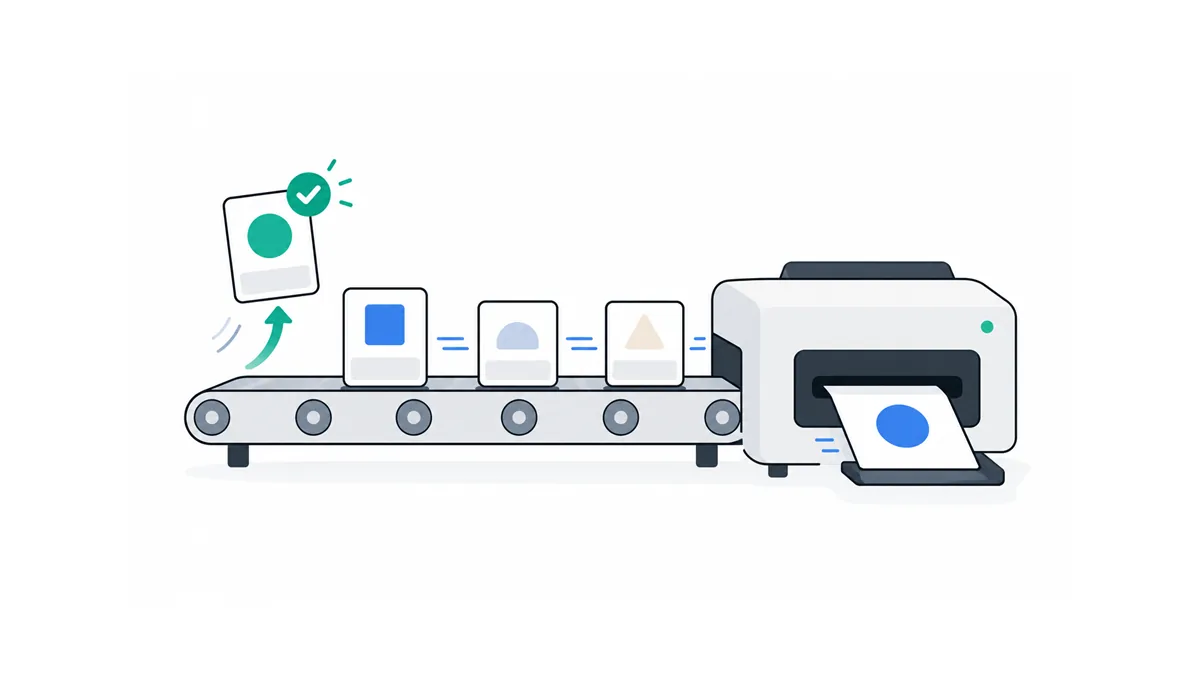
Step 5 removes the pending printer jobs instead of releasing them, so print them again afterwards. The full escalation, including the spool folder, is in the guide to clear print queue jobs.
What does it mean when printer jobs waiting sit behind an error?
An Error status on the first job means the printer told Windows something went wrong partway through: a jam, an empty tray, low ink or a driver problem. The printer jobs waiting behind it are fine; they're just in line.
- Look at the printer's own screen or lights and fix what it reports.
- In the queue, right-click the failed job and choose Restart.
- If it fails again, choose Cancel. The printer jobs waiting behind it should start straight away.
- Print the cancelled document again once everything else has finished.
If the same document fails every time, the file itself may be the problem — try printing it to PDF first, then print the PDF. When every job ends in Error, the driver is the more likely cause.
Either way, print jobs pending behind an error clear the moment the first job is restarted or removed.
Frequently Asked Questions
What does print jobs pending mean?
Print jobs pending means Windows has accepted the jobs and put them in the queue, but they have not been sent to the printer or printed yet. They are waiting for the job in front of them, or for the printer to become ready.
How do I restart a pending job?
In the classic queue window, right-click the job and choose Restart. The job prints again from the first page. In Windows 11's newer queue view, cancel it and print it again if Restart is not offered.
Why do jobs pend only on Wi-Fi printers?
Wi-Fi printers fall asleep or get a new network address after a router restart, so Windows can no longer reach them. Wake the printer, check it is on the same network, and the jobs start again.
Will restarting the PC lose pending jobs?
Usually not — waiting jobs normally resume when the spooler starts again. A job that was stuck before the restart may still block the rest and need to be cancelled.
Does the printer troubleshooter help?
Sometimes. It can restart the spooler and spot a printer Windows can't reach. See how to run the printer troubleshooter on Windows 11 and 10.