 printerqueue
Home › Cancel print job
How to Cancel Print Job on Windows, Mac or Printer
To cancel print job on Windows, open Settings → Bluetooth & devices → Printers & scanners, pick your printer, choose Open print queue, then right-click the document and select Cancel. To stop everything, use Cancel all in that window. On a Mac, open Print Center, select the job and click Delete Job. If pages are already coming out, press the Cancel (X) button on the printer, because the job may already be in its memory. A job stuck on "Deleting" needs a spooler restart.
On this page
Every job you send waits in the printer queue until the printer takes it, and that's where you cancel print job requests. The quicker you act, the less paper you waste — so pick the section for your device and go.
How do you cancel print job on Windows 11 and 10?
These steps follow Microsoft's stuck print job steps and work the same way on both versions, apart from the Settings path:
- Select Start → Settings.
- Go to Bluetooth & devices → Printers & scanners (Windows 10: Devices → Printers & scanners).
- Select your printer, then Open print queue (Windows 10: Open queue).
- Right-click the document you want to stop and choose Cancel.
- Confirm with Yes.
The job's status changes to "Deleting" and it should vanish within a few seconds. If you cancel print job requests for a document that has started printing, the printer may still finish the page it's on.
You can also cancel print job requests from the taskbar: while a document prints, double-click the printer icon in the notification area to open the same window.
What if a cancel print job request is stuck on Deleting?
A job that sits on "Deleting" for more than a minute isn't going away on its own. The windows print spooler still has the job file open, so Windows can't remove it. Restart the spooler to release it:
- Press Windows key + R, type
services.mscand press Enter. - Find Print Spooler, right-click it and choose Stop.
- Open
C:\Windows\System32\spool\PRINTERSand delete everything inside. Windows may ask for administrator permission. - Go back to Services, right-click Print Spooler and choose Start.
Stop the spooler first. Windows won't let you delete files it's using, and deleting the folder itself instead of its contents breaks printing.
Prefer typing? These three lines do the same thing in an administrator Command Prompt — the clear printer queue cmd method:
net stop spooler
del /Q /F /S "%systemroot%\System32\spool\PRINTERS\*.*"
net start spoolerRun as administrator. This deletes every waiting job on this PC.

After the spooler starts again, the stuck job is gone. If the same document keeps coming back, the app may be re-sending it; close the app first, then cancel print job again.
How do you cancel printing from the printer itself?
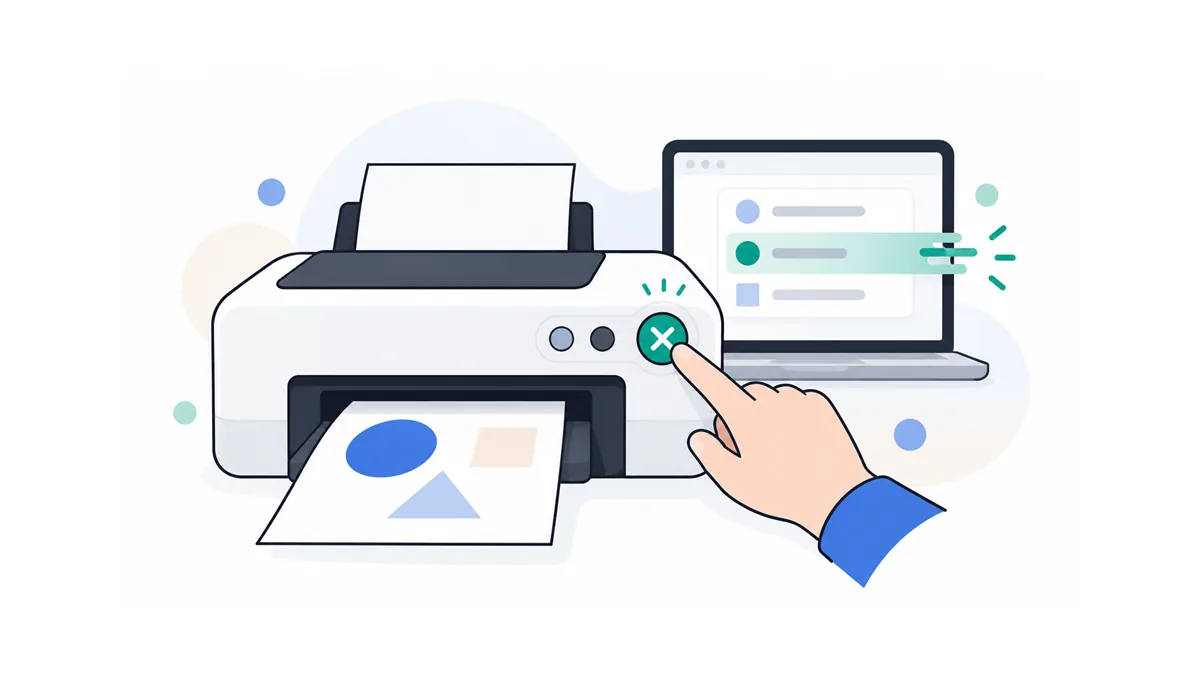
When paper is already coming out, the fastest way to cancel printing is on the printer. Most printers have a Cancel button marked with an X or a stop symbol; printers with a touch screen show Cancel on the screen while a job runs. Press it once and wait — the printer usually finishes or ejects the current page and then stops.
Why not cancel printing on the computer? Many printers store the whole job in their own memory as soon as it arrives. At that point the job may already have left your queue, so there's nothing left on the PC to cancel.
If the printer ignores Cancel, turning it off is the last resort to cancel printing. Switch it off, wait 60 seconds and turn it back on. Then clear the queue on your computer before you print again, or the job may start over. Button names and layouts vary by model, so check the printer's manual if you can't find Cancel.
How do you cancel print jobs in queue all at once?
To cancel print jobs in queue in one go, open the queue window as above and choose Cancel all. In the classic window — the one you get from Devices and Printers → See what's printing — it's Printer → Cancel All Documents. Confirm with Yes.
That clears your whole cancel printing queue list for that printer, so do it only when you don't need anything else that's waiting. If you share the printer, cancelling other people's jobs needs administrator rights.
When you cancel print jobs in queue this way and some jobs refuse to leave, they're locked by the spooler — use the "Deleting" fix above. For more on emptying the queue completely, see the guide to clear print queue jobs.
How to cancel a print job on a Mac
On a Mac, you cancel print job requests in Print Center. Apple's Apple's Print Center guide covers the details; the short version:
- Open Print Center. It opens by itself when you print; otherwise go to Finder → Applications → Utilities → Print Center.
- Select your printer in the sidebar.
- Select the job you want to stop.
- Click the Delete Job button.
To hold a job instead of deleting it, use Hold Job; Resume Job lets it print later. Stuck jobs on the mac printer queue often clear after you pause the printer, delete the job and resume.
Whichever device you use, the quickest way to cancel printing is to act before the job reaches the printer — and once you know where the queue is, you can cancel print job requests in seconds.
Frequently Asked Questions
How do I cancel a print job in progress?
Press the Cancel (X) button on the printer. Once pages are coming out, the job is usually already in the printer's memory, so cancelling it on the computer may come too late.
Why won't my print job cancel?
The Print Spooler service is still holding the job file. Restart the spooler, or stop it, delete the files in the spool folder and start it again.
Can I cancel printing from my phone?
Usually, while the job is still sending. On Android, an active print job generally shows in the notification shade with a Cancel option. On iPhone, open Print Center from the app switcher while it prints. If the printer has already started, use its Cancel button.
Does cancelling waste ink?
Only on pages that have already started printing. Jobs still waiting in the queue use no ink or paper when you cancel them.
How do I cancel print jobs on an HP printer?
The same way as any other printer: cancel in the queue window, or press the Cancel (X) button on the printer. These steps work for any hp printer queue on Windows or Mac; HP's own support site has model-specific button layouts.