 printerqueue
Home › HP printer queue
HP Printer Queue: Open, Clear and Fix Stuck Jobs
The hp printer queue works like any Windows or Mac queue: open Settings → Bluetooth & devices → Printers & scanners, pick your HP printer and select Open print queue. If you see two entries such as "HP … (Copy 1)", check both — jobs often wait in the copy you didn't expect. To clear a stuck job, cancel it there, then restart the Print Spooler service if it stays. On a Mac, use Print Center. This is an independent guide; HP's own support pages cover model-specific printer menus.
On this page
Nothing about the printer queue is HP-specific — Windows and macOS manage it. What does differ for an hp printer queue is the printer's own panel, and the duplicate entries HP software sometimes leaves behind. To stop one job quickly, see how to cancel print job requests.
How do you open the hp printer queue on Windows?
These steps match Microsoft's print queue instructions:
- Select Start → Settings.
- Go to Bluetooth & devices → Printers & scanners (Windows 10: Devices → Printers & scanners).
- Select your HP printer.
- Select Open print queue (Windows 10: Open queue).
The window lists every job in the hp printer queue, oldest first. If the first job shows Error, look at the printer's screen — HP printers usually say exactly what's wrong, such as a jam or a cartridge problem.
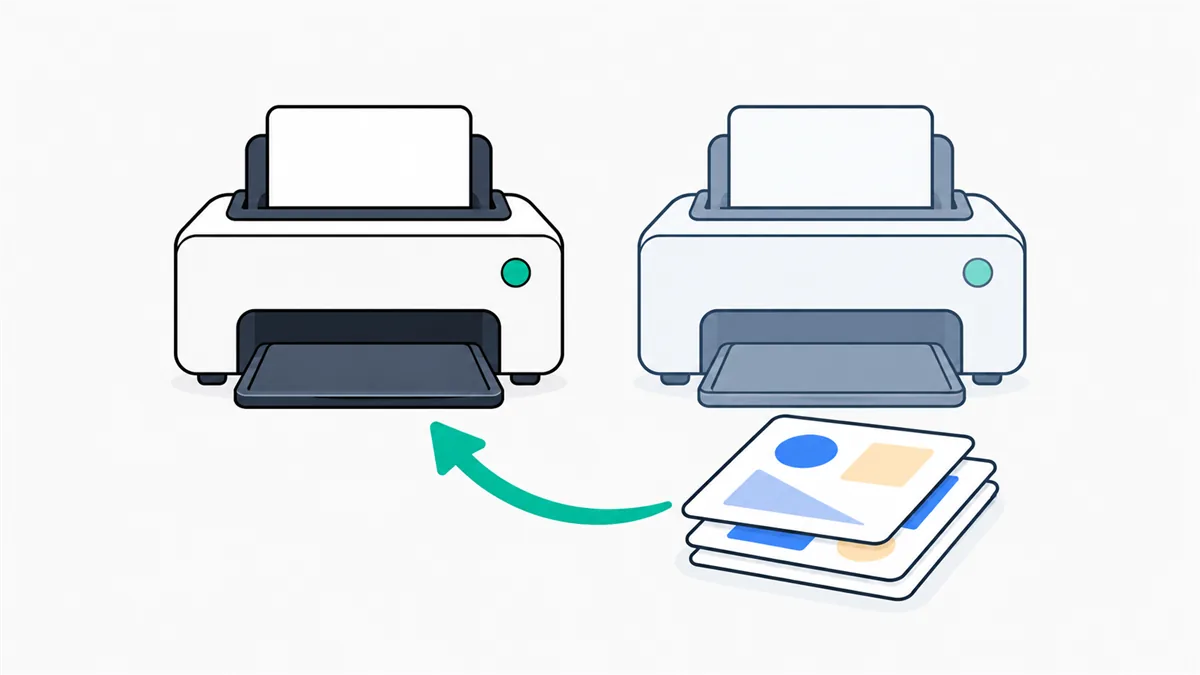
Why does the hp printer queue show two printers?
If Printers & scanners lists the same HP model twice — often one with "(Copy 1)" or "(Network)" in the name — Windows has installed it twice, usually after a driver reinstall or when the printer got a new network address. Each copy has its own hp printer queue, and jobs sent to the copy that no longer connects just wait.
Open the hp printer queue for each copy to find the waiting jobs. Print a test page from each one, keep the copy that works, then select the other and choose Remove. Set the working copy as default so apps stop picking the wrong one.
How do you clear printer queue HP jobs that are stuck?
To clear printer queue hp jobs, work from quickest to most thorough, the same order as Microsoft's stuck print job steps:
- Cancel all. In the queue window, choose Cancel all (classic window: Printer → Cancel All Documents).
- Restart the spooler.
services.msc→ Print Spooler → Restart. - Empty the spool folder. Stop the spooler, delete the files in
C:\Windows\System32\spool\PRINTERS, then start it again. - Power-cycle. Turn the HP printer off for 60 seconds and restart the PC.
Steps 2 and 3 fit into three commands for an administrator Command Prompt, the fix for an hp printer queue stuck on "Deleting":
net stop spooler
del /Q /F /S "%systemroot%\System32\spool\PRINTERS\*.*"
net start spoolerRun as administrator. This deletes every waiting job on this PC.
To clear printer queue hp jobs on a Mac, open Print Center, select the printer, then select each job and click Delete Job. There's more detail in the guide to clear print queue jobs.
Why is the HP printer in queue but not printing?
When jobs sit in the queue and the HP printer does nothing, check these in order:
- The printer is offline or asleep. Press any button to wake it. A Wi-Fi printer may have dropped off the network; check its wireless light or network screen.
- Jobs went to the wrong copy. See the duplicate printer section above.
- The printer needs attention. An empty tray, low ink or a jam stops everything. HP printers show this on the panel.
- The driver is out of date. After a Windows update, updating printer drivers often fixes an hp printer in queue but not printing.
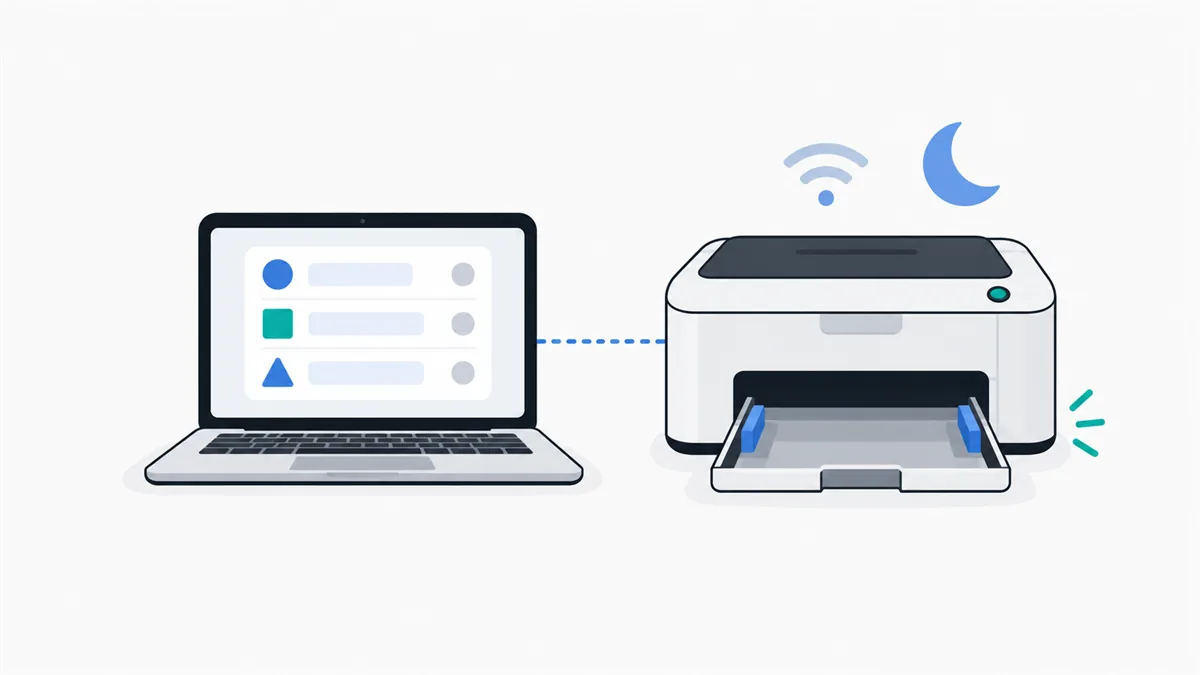
The queue's status column narrows it down quickly; the printer queue status guide explains Offline, Error and Paused. Once the cause is fixed, the hp printer queue usually starts printing on its own.
Frequently Asked Questions
How do I cancel a print job on the HP printer itself?
Press the Cancel (X) button on the control panel, or tap Cancel on the touch screen while the job runs. Button layouts vary by model, so check the printer's manual if you can't find it.
Does HP Smart show the print queue?
This guide has not checked HP Smart's queue view, so use the Windows or Mac queue: it always shows what is waiting on your computer, whichever app you printed from.
Why does my HP printer say Offline?
Windows can't reach it — it may be asleep, on a different Wi-Fi network or set to Use Printer Offline. The printer queue status guide covers each case.
Will reinstalling the HP driver clear the queue?
Often, because removing the printer also removes its hp printer queue. Try the spooler restart first; it is quicker and keeps your settings.
Is this site HP support?
No. PrinterQueue is an independent guide and is not affiliated with HP. For warranty, repairs or model-specific menus, use HP's own support site.