 printerqueue
Home › Updating printer drivers
Updating Printer Drivers on Windows 11 and 10
The safest way to handle updating printer drivers is Windows Update, which Microsoft recommends. On Windows 11, open Settings → Windows Update → Advanced options → Optional updates and install any printer driver updates listed there. If nothing appears, open Device Manager, expand Print queues, right-click your printer and choose Update driver. If that also fails, download the newest printer driver for your exact model from the manufacturer's own support site. Restart the PC afterwards, then print a test page.
On this page
A driver is the small program that tells Windows how to talk to your printer. When it's out of date or damaged, jobs stall in the printer queue, features go missing or the spooler keeps crashing. Here's how to go about updating printer drivers without making things worse.
Avoid third-party driver updater apps — use Windows Update or the manufacturer's site.
What is the safest order for updating printer drivers?
Work from the safest source to the most manual one. Microsoft's Microsoft's printer driver instructions puts Windows Update first, and the other two steps follow from it:
- Windows Update. Drivers here are tested for your version of Windows.
- Device Manager. Lets Windows search for a newer driver for one printer.
- The manufacturer's site. Gets the full driver package for your exact model when Windows has nothing newer.
Stop at the first step that works. Updating printer drivers more often than needed doesn't make printing faster, and every change is a small chance of something new going wrong.
How do you know updating printer drivers is actually needed?
A driver update is worth doing when you see one of these signs:
- Printing broke after a big Windows update, or you've just moved to Windows 11.
- The printer's status says Driver is unavailable. The printer queue status guide lists the other states.
- The windows print spooler keeps stopping, especially when you print to one printer.
- Features such as two-sided printing, trays or scanning are missing.
If none of these apply and only one job is stuck, the driver is probably fine — clear the queue first. Updating printer drivers won't release a job that's already locked.
How do you update printer drivers windows 11 through Windows Update?
To update printer drivers windows 11, use this route:
- Select Start → Settings → Windows Update.
- Select Check for updates and install anything waiting.
- Select Advanced options → Optional updates.
- Open Driver updates, tick any entry for your printer and select Download & install.
- Restart the PC when asked.
Windows doesn't always offer printer drivers automatically, so the optional updates list is worth checking even if Windows Update says you're up to date. On Windows 10 the path is Settings → Update & Security → Windows Update → View optional updates → Driver updates, and the rest of the steps are the same — that's how you update printer drivers windows 10 as well.
To update printer drivers windows 11 on a work PC, your organization may control updates. If the optional updates page is missing or locked, ask whoever manages the PC.
How do you update a driver from Device Manager?
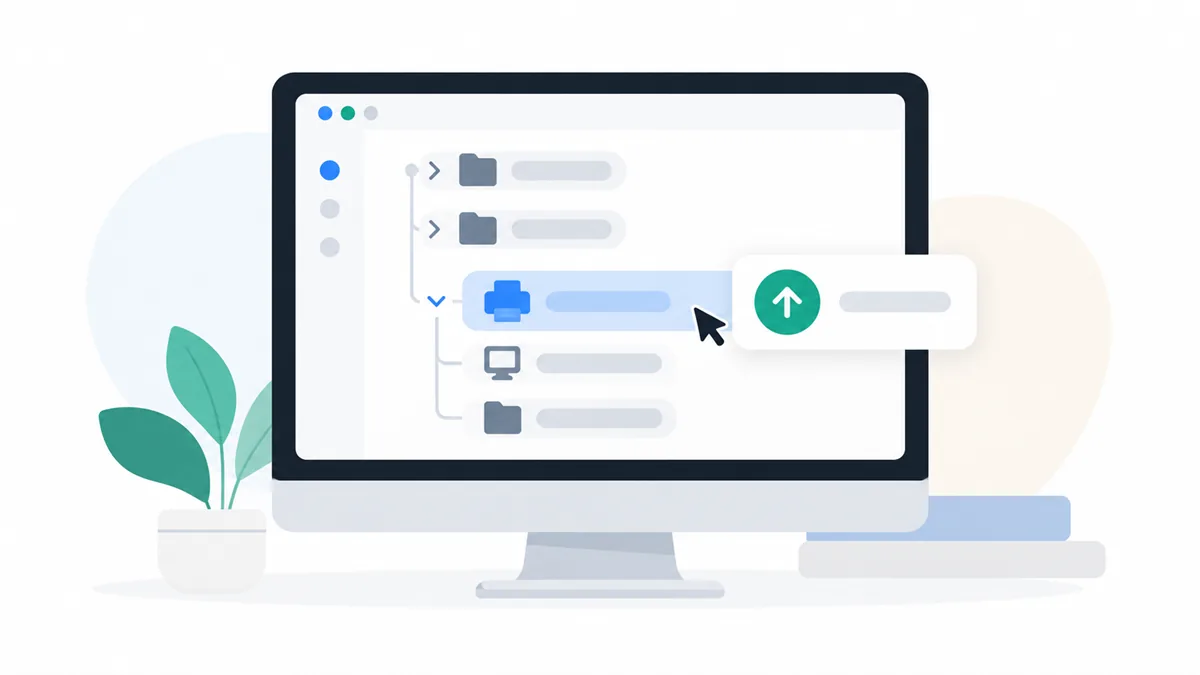
Device Manager lists each printer under Print queues:
- Right-click Start and choose Device Manager.
- Expand Print queues. Some printers are also listed under Printers.
- Right-click your printer and choose Update driver.
- Choose Search automatically for drivers.
- If Windows finds a newer driver, let it install, then restart.
"The best drivers for your device are already installed" only means Windows has nothing newer. The maker's site may still have a newer printer driver. If printing still fails after updating printer drivers this way, run the printer troubleshooter to check the connection and spooler.
How do you reinstall a printer driver that keeps failing?
When a driver is damaged rather than old, updating printer drivers on top of it may not help. Reinstall instead:
- Clear any waiting jobs from the printer's queue.
- Open Settings → Bluetooth & devices → Printers & scanners, select the printer and choose Remove.
- Restart the PC.
- Return to Printers & scanners, select Add device and let Windows find the printer again.
- If Windows can't find a working driver, install the maker's package next.
Removing and adding the printer gives you a clean printer driver and a fresh queue, which also fixes duplicate printer entries such as "Copy 1".
How do you get the printer driver from the manufacturer?
When Windows has nothing newer, the printer's maker usually does. Microsoft's Microsoft's printer driver instructions describes the same steps:
- Find the exact model number on a label on the printer, usually on the front, back or under the lid.
- Go to the printer maker's official support site. Type the address yourself or use a search result from the maker's own domain.
- Search for your model and choose your version of Windows.
- Download the recommended full driver package and run the installer.
- Restart the PC and print a test page.
Get the printer driver only from the maker's own domain. Download portals and "driver finder" sites sometimes repackage old drivers with extra software. On an ARM-based PC, many maker installers won't run; Microsoft advises using Add device in Printers & scanners instead.
Once the new driver is in, check your queue. Jobs sent before the change may need to be printed again, and that's the last step in updating printer drivers properly.
Frequently Asked Questions
Is updating printer drivers free?
Yes. Driver updates through Windows Update and from printer makers' official support sites are free. Be wary of any site or app that charges for drivers.
Should I use a driver updater app?
No. Third-party driver updater apps can install the wrong driver or bundle unwanted software. Use Windows Update or the manufacturer's own site.
How do I find printer drivers on this computer?
Open Device Manager and expand Print queues, or open Print Management (printmanagement.msc) on Pro editions and look under Drivers. Both show which driver each printer uses.
Will updating the driver delete my print queue?
It can. Jobs waiting when the driver changes may fail and need to be printed again, so finish or clear print queue jobs before you update.
Why can't my ARM PC install the printer driver?
Many printer makers' installers are built for Intel and AMD PCs only. Microsoft advises ARM-based PCs to add the printer through Settings → Bluetooth & devices → Printers & scanners → Add device, which uses a built-in driver.