 printerqueue
Home › Printer queue status
Printer Queue Status: What Each Status Means
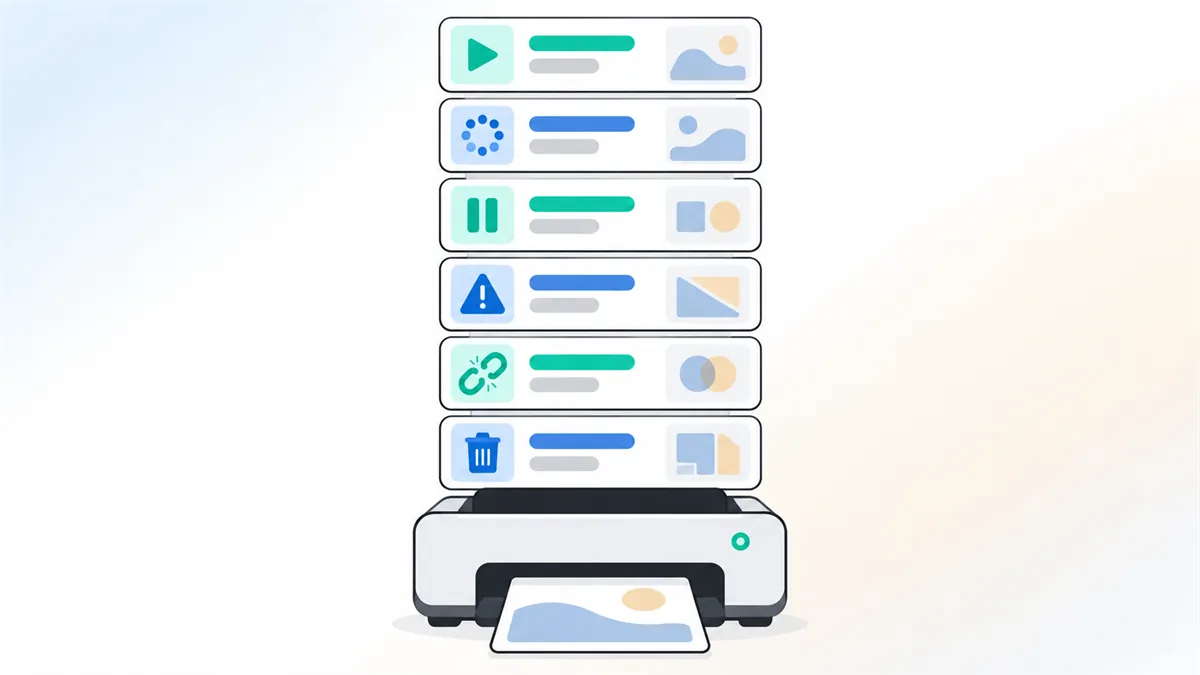
The printer queue status column tells you what is happening to each job. "Spooling" means Windows is still preparing the file. "Printing" means it is being sent now. "Paused" means you or an app stopped it. "Error" usually points to paper, ink or a driver fault at the printer. "Offline" means the PC can't reach the printer. "Deleting" means a cancel is waiting on the spooler. Check it in Settings → Bluetooth & devices → Printers & scanners → Open print queue, or in Print Center on a Mac.
On this page
The status word is the quickest clue to why a printer queue has stopped. Read the printer queue status on the first job in the list — that's the one holding up the rest. To see the whole list first, check current print jobs in queue windows.
What does each printer queue status mean?
Windows shows the print queue status in the Status column of the queue window. Some jobs show a two-word printer queue status, such as "Error – Printing", which means the job was printing when the fault happened. A blank status just means the job is waiting its turn.
| Status | Meaning | What to do |
|---|---|---|
| Printing | The job is being sent to the printer now. | Wait. If nothing comes out after a few minutes, check the printer itself. More |
| Spooling | Windows is still preparing the file. | Wait for large files. Stuck for many minutes? Restart the print spooler. More |
| Paused | The job or the whole printer was paused. | Right-click the job and choose Resume, or untick Pause Printing. More |
| Error | The printer or driver reported a fault. | Fix paper, ink or jams shown on the printer; then restart or cancel the job. More |
| Offline | The PC can't reach the printer. | Check power, Wi-Fi or cable, and the Use Printer Offline setting. More |
| Deleting | A cancel is waiting on the spooler. | Stuck for over a minute? Restart the spooler and empty the spool folder. More |
The printer queue status can change quickly — Spooling turns into Printing within seconds for a short document. If the same status stays for several minutes with nothing coming out, that's when to act.
Why does the printer queue status say Offline?
Offline means Windows tried to reach the printer and couldn't. The printer queue status shows it for the printer, and jobs wait until it comes back. Common causes:
- The printer is off or asleep. Wake it with any button and wait a minute.
- The connection dropped. A Wi-Fi printer may have joined another network, or its address changed after a router restart.
- The wrong port. If you added the printer twice, jobs may be going to the copy that no longer connects.
- "Use Printer Offline" is ticked. In the queue window's Printer menu, untick it.
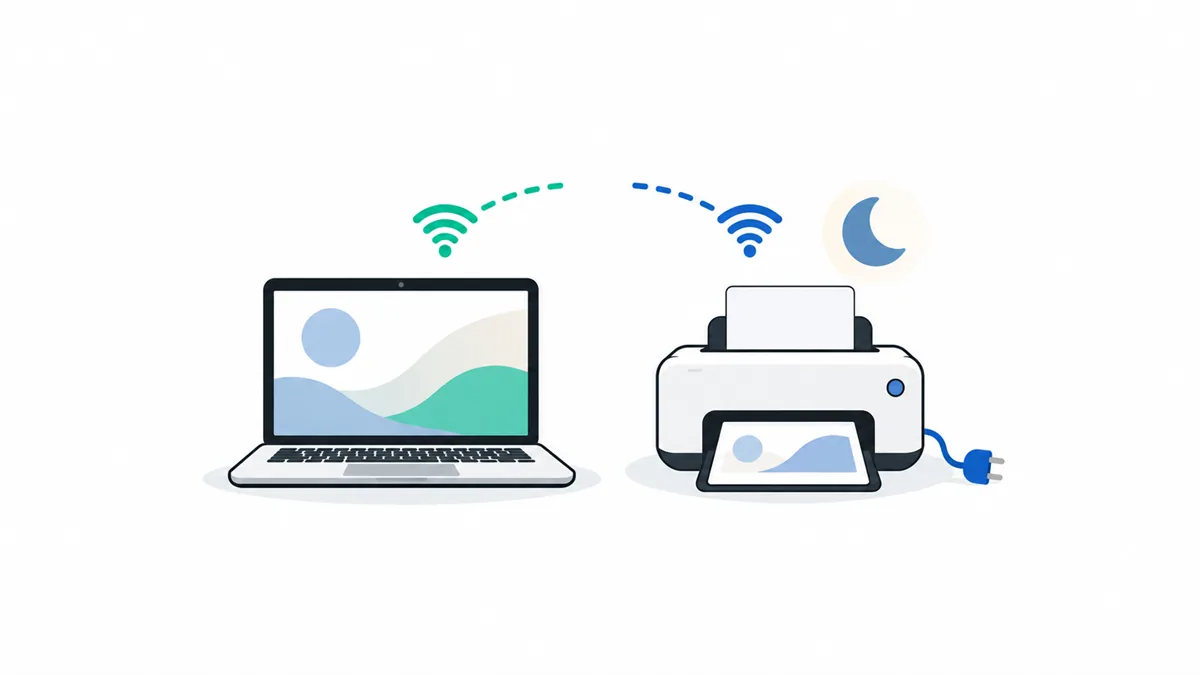
Turn the printer off for 60 seconds and back on, then check that it's on the same network as the PC. If the printer queue status still shows Offline, run the printer troubleshooter, which checks whether Windows can reach the printer.
How do you check printer status on this computer?
You can check printer status without opening the queue. In Windows 11, open Start → Settings → Bluetooth & devices → Printers & scanners; each printer shows a short status line under its name, such as Idle, Printing or Offline. On Windows 10 it's Settings → Devices → Printers & scanners. These are the same routes as in Microsoft's print queue instructions.
That printer status is about the printer itself. The print queue status in the queue window is about each job. A printer can be Idle while a job shows Error, for example after a jam you've already cleared — restart the job and it prints.
Many printers also show their own print status on a screen or through lights, and network printers often have a web page with ink levels and error logs. If Windows and the printer disagree, trust the printer's own display.
What does print queue status printing mean when nothing prints?
"Printing" with no paper coming out usually means the job reached the printer and the printer is waiting for something. Check for:
- A paper or tray message, such as a manual-feed tray waiting for a sheet.
- A warm-up or cleaning cycle, common on lasers and inkjets after sleep.
- A low-ink or wrong-paper-size prompt that needs a button press.
If the printer shows nothing at all, the print queue status printing may be stale. Restart the print spooler, or turn the printer off and on. When several jobs pile up behind one that never finishes, see print jobs pending for the cause-by-cause fixes.
How do you check print status on a Mac?
On a Mac, open Print Center to see each job's print status. The printer's Dock icon also carries a badge, as Apple's Print Center guide explains:
- Red badge with a number: the printer is printing, and the number is how many jobs are waiting.
- Green badge with a pause symbol: the printer is paused. Select it in Print Center and click Resume.
- Yellow badge: the printer needs attention, such as a jam or low ink or paper. Fix it, then resume printing.
The badge is a quick way to see the printer queue status without opening anything, so glance at the Dock after you print.
Frequently Asked Questions
What does "Spooling" mean?
Windows is still preparing the file and writing it to the spool folder. Large documents can spool for a while; it should change to Printing on its own.
What does "Error – Printing" mean?
The printer reported a fault in the middle of the job — often paper, ink or a driver problem. Fix what the printer shows, then restart the job or cancel it and print again.
Why is my printer status "Paused"?
Someone or something ticked Pause Printing in the queue window's printer menu. Untick it and the jobs continue.
How do I check printer status on Windows 11?
Open Settings → Bluetooth & devices → Printers & scanners. Each printer shows a status line under its name, such as Idle or Offline.
Why does a job say "Sent to printer" but not print?
The job has reached the printer's own memory. Check the printer's screen for a paper, tray or warm-up message.